- Disable anti-virus, anti-spyware and firewall when not connected to a wireless network
This will save some CPU usage and make your system respond faster. Be forewarned, if you connect to any wireless network, you should enable them back.
Also,if you are doing risky activities such as using a friend's thumb drive or installing a program from dubious sources, be sure to enable your anti-virus - Defrag your hard disk
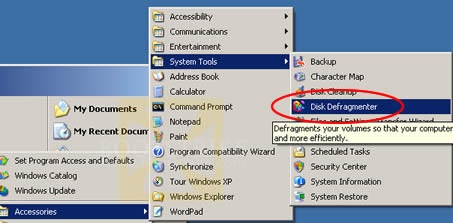
As mentioned above, defrag saves the hard disk from going all over the place to retrieve a file. When defragging, use AC power as it is a hard disk throttling process. - Disable unneeded programs from starting up
Using Start > Run > msconfig. Some programs may be essential, but most others just take up memory and CPU cycles; i.e. more power
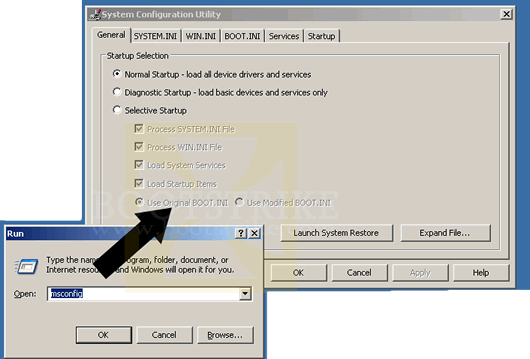
Yet another more powerful utility is AutoRuns. Autoruns allows you to explore in more places where a program may start up, such as Services (Start > Run > services.msc).
Remember, if you are unsure, Google. Don't just disable programs. Disabling programs may cause some features to not work. One example is Bluetooth. I disabled the Service from starting up automatically. The tradeoff is that I had to manually create shortcuts in the start menu to load the required software when Bluetooth needs to be used. - Disable and/or remove hardware devices that you don't need
Except for the webcam - it sucks power even if you disable it in Device Manager. You can manually remove the DVD-ROM (or writer) to lighten the laptop as well as to save a bit of power there.
You can disable the following devices that you don't use in Device Manager (Start, Control Panel, System, Hardware, Device Manager)- DVD-RW drive (manually remove it to lighten the laptop and to completely cut the power connection)
- Bluetooth devices
- Modem
- Network card
- USB ports
- Stand by the system rather than using Hibernate or Shut Down
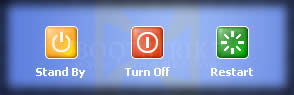
If you are very likely to use the system again in the next 3 hours, I would suggest to put the system in standby mode. While in standby mode, only the following devices are turned on
- CPU (in a very low power state)
- Memory
- Power LED indicator
- Switch off Wireless and Bluetooth when not needed
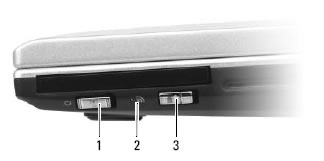
XPS M1330 Wireless Switch (1) indicates the wireless switch, (2) is LED indicator, while (3) is Wi-Fi Catcher
The above image shows the Dell XPS m1330 wireless switch on the right side towards the front. Similar switches exist for the other laptop models. Simply push the switch to the off position and the power to the wireless card will be cut off.
- Enable PowerMizer (for nVidia card owners)
Access the NVIDIA Control Panel by right-clicking anywhere on the desktop and clicking it. Click 'Change PowerMizer settings' under Mobile. Make sure PowerMizer is enabled as well as 'Extend battery charge by using less power for the display'. This will reduce refresh rate to 50Hz and MAY cause problems with games or 3D graphics applications but does extend battery life if you don't use such applications. - Standard Stuff That Doesn't Need to be Said (Or has been mentioned above)
Run minimal programs. For example, when you are done with Outlook, close it. Don't minimize it to the system tray or taskbar.
Use SpeedSwitchXP to force throttle the CPU to the lowest speed when on battery. Relying on Intel's automatic SpeedStep may cause the CPU to go to full speed without you knowing and taking up additional power.
Avoid using CPU intensive applications like games and encoding tasks when running on batteries.
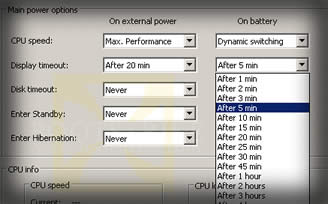
Use the lowest LCD brightness where possible. When display is not needed, either close the lid or set SpeedswitchXP to switch off the display in one minute. Or use MonOff to manually trigger the LCD to be switched off.
2012年3月6日星期二
Batteryfast Tips:Minimize your Notebook's Power Usage
Tagclouds:Batteryfast Tips,Minimize Notebook's Power Usage,Laptop AC Adapter,dell studio 1537 battery,dell d600 battery

订阅:
博文评论 (Atom)
没有评论:
发表评论